Amazon Scraper API vs Proxy: Choose a Product Data Source
Compare seller APIs, licensed Amazon product data and proxy page checks by record, access scope and reuse rights.
Read guide
Add a proxy in Ghost Proxy Control, assign it to the right tab, Identity, or Workspace, and confirm which exit the live tab really uses.
Ghost Browser applies proxies through its Ghost Proxy Control extension. Add the endpoint under Add/Edit Proxies, then assign it to the active tab, an Identity, or a Workspace and click Reload. The narrowest scope wins: a tab proxy overrides the Identity, and an Identity proxy overrides the Workspace. Confirm the result with an IP check in that exact tab.
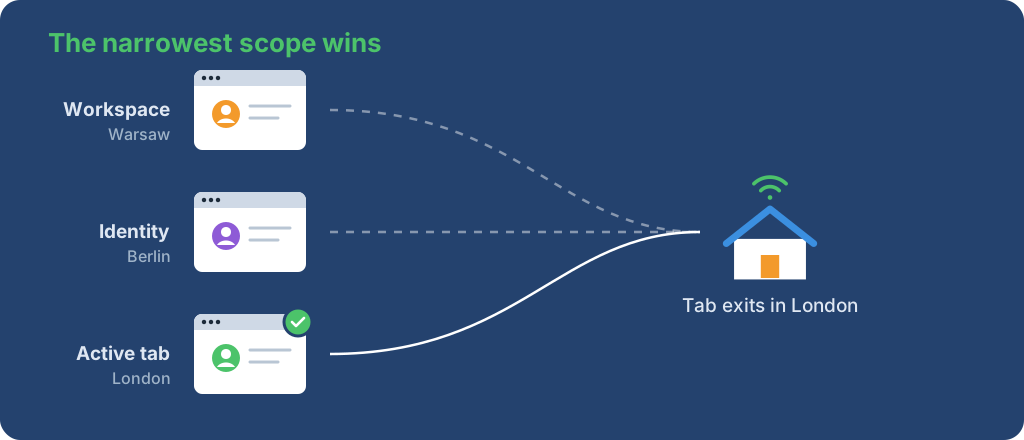
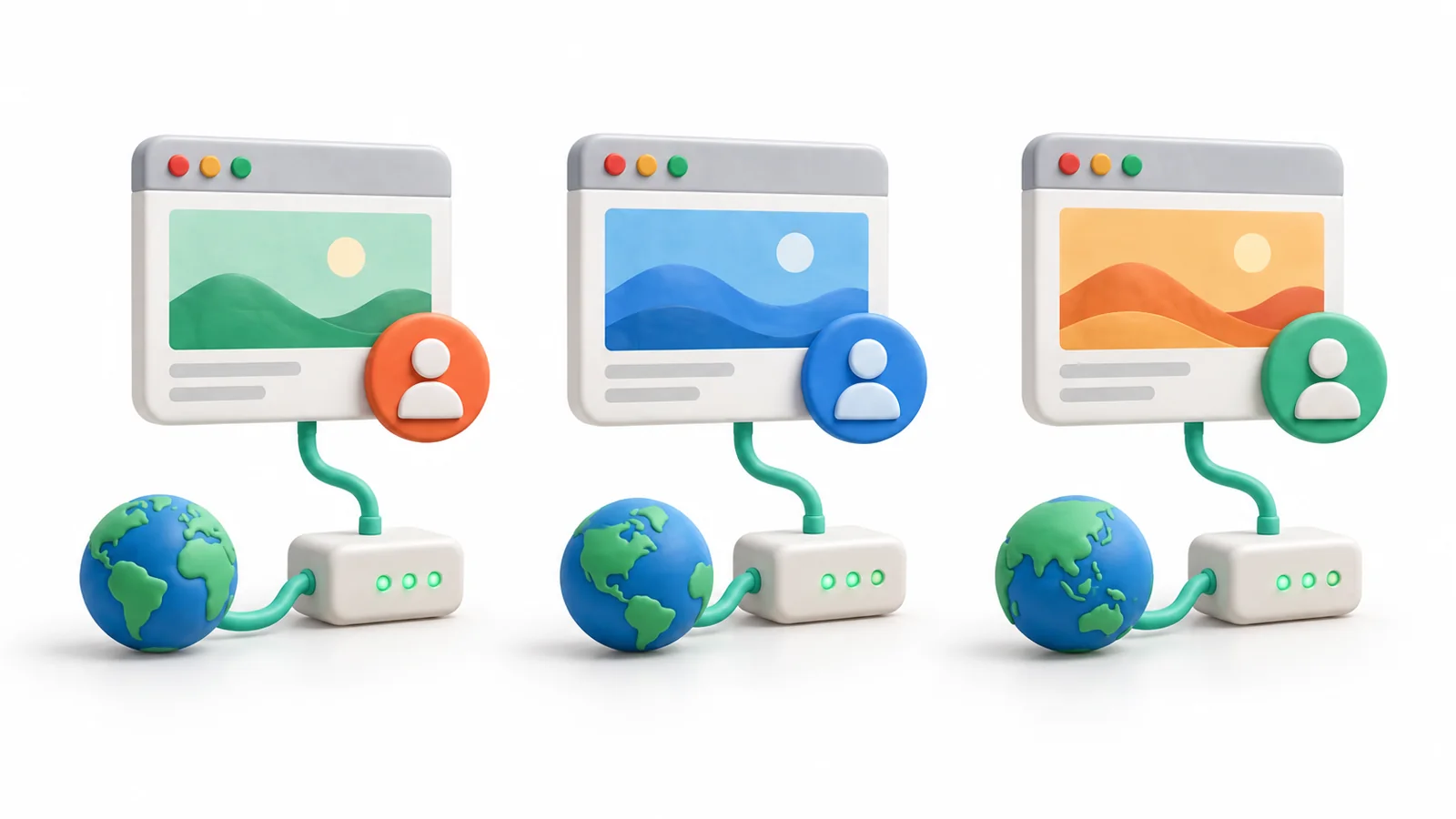
When a proxy is saved correctly but the tab still shows another exit, check this hierarchy first: a tab-level or override setting can send the tab somewhere else. The cities in the diagram are examples of three different assignments.
The steps below follow Ghost's Ghost Proxy Control article, checked on 2026-10-27; ProxyLane did not run them in a specific Ghost Browser version. Menu labels can change between releases, so match them against the installed build.
Ghost Proxy Control is a Pro Plan feature and does not include proxies. Bring an endpoint from a provider and keep its host, port, protocol, proxy username, password, and session instructions in a private connection record.
Warning: Proxy credentials can grant access to paid traffic. Keep them in the extension's fields or an approved secret store, not in a shared note, screenshot, or profile name.
Add/Edit Proxies.Add a Single Proxy.Add Proxy.Test button, or assign the proxy to a tab, to check that it connects.For HTTP or HTTPS, enter host and port in their fields and add credentials when the endpoint requires them. For SOCKS5, put the scheme in the Host field: Ghost's support article requires a value shaped like socks5://192.0.2.10, with port, username, and password in their own fields. The address is a documentation example; a bare hostname is not read as SOCKS5.
Add/Edit Proxies, click Add Bulk Proxies.Export Proxy List to download the pre-formatted CSV, including existing proxies.Custom Name is required; blank entries are numbered automatically.Import Proxy List, select the file, and click Open.Treat the CSV as a credential file while it is on disk, and delete it after the import.
Open the Ghost Proxy Control menu, choose the scope, select the saved proxy, and click Reload.
| Assignment | Effect |
|---|---|
| Active tab | Overrides the proxy of its Temporary Identity or Workspace |
| Temporary Identity | Overrides the Workspace proxy |
| Workspace | Applies to every tab unless a narrower scope overrides it |
Direct (no proxy) |
Sends the tab through the direct connection |
System Proxy |
Uses the browser or operating system proxy settings |
A proxy in the Override connection for section also takes precedence over Auto-Assign Proxies. When a tab exits from the wrong place, inspect in this order: the tab, its Identity, the Workspace, then any override or auto-assignment rule.
For long-running accounts, use a permanent Identity. Ghost's Identities article describes permanent Identities, kept in the Identity Manager with persistent cookies, and an option to assign a proxy that the Identity always uses. Set the proxy there for an account that must keep one route across sessions, then verify it in a tab of that Identity.
Reload.Record the scope, proxy label, observed exit, final URL, check result, and timestamp, without the password. The IP check proves the route that tab used at that moment. It does not prove target acceptance, login success, or complete content; the proxy IP and browser diagnostics guide gives a compact evidence format.
Under Auto-Assign Proxies, enable assignment to each tab or Tmp. Identity, then choose random or in-order rotation. To spread proxies across Temporary Identities that are already open, click Re-assign Existing, then Reload.
Use rotation only when the work tolerates a changing exit. For one account or a multi-step session, keep one proxy on the permanent or temporary Identity that holds the session. A rotation setting can change the exit between tabs and does not promise a country, session length, or target result.
| Symptom | Check next |
|---|---|
| Proxy cannot be added | Host, port, protocol, and credential fields; socks5:// in Host for SOCKS5 |
| Tab shows the local IP | Direct (no proxy), System Proxy, or a narrower assignment on the tab |
| Wrong proxy after auto-assignment | Auto-Assign Proxies and Override connection for, then reassign and Reload |
| Proxy asks for authentication | Credentials and authentication mode; the proxy error 407 guide covers causes |
| Target returns 401, 403, 429, or a challenge | Target response, account state, and request rate, separate from the route |
| HTTPS opens but content is missing | Final URL and the expected element; transport success is not page success |
To remove a proxy, click Clear Tab/Identity/Workspace for that scope and click Reload. Clearing an Identity or Workspace removes the proxy from all of its tabs.
For protocol choice, read HTTP vs SOCKS5 proxies. For other profile tools, start with the antidetect browser proxy setup guide.
 ProxyLaneTraffic never expires
Scale your workflows with the tools you already use. Rotating or sticky sessions up to 72 hours.
Compare seller APIs, licensed Amazon product data and proxy page checks by record, access scope and reuse rights.
Read guideChoose the right anti-detect browser proxy guide, map the shared verification steps, and keep account access separate from the network route.
Read guideOur picks for market research: ProxyLane for small, intermittent projects, plus options for regional tracking, monthly collection and managed extraction.
Read guide